¶ Map - User Guide
The Map page is the main spatial interface for viewing and interacting with your site's assets. It provides tools for navigation, measurement, drawing, and searching.
¶ Toolbar Overview
The toolbar at the top of the map provides access to all map tools.

¶ Layers
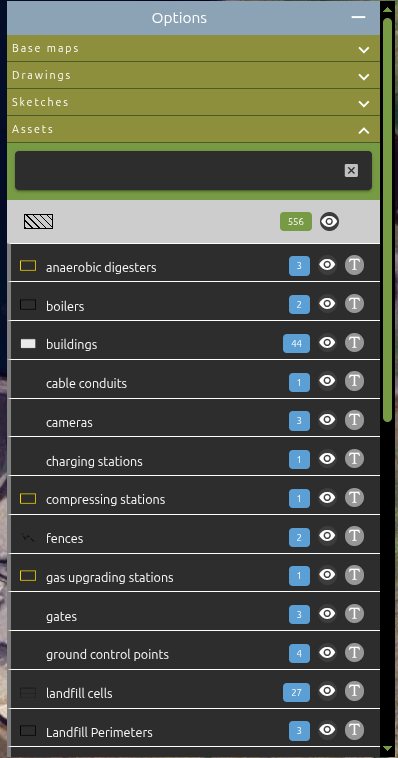
Toggle the Layers button to show or hide the layers panel on the left side of the map. The layers panel lets you control which asset layers are visible.
- Green button indicates the layers panel is currently visible.
¶ 
¶ Zoom
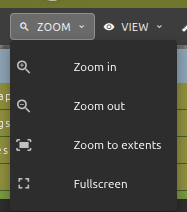
The Zoom menu provides navigation controls:
| Action | Description |
|---|---|
| Zoom In | Increase the zoom level by one step |
| Zoom Out | Decrease the zoom level by one step |
| Zoom to Extents | Fit all visible layers into the map view |
| Fullscreen | Enter fullscreen mode for the map |
¶ View
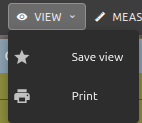
The View menu provides options for saving and exporting the current map state.
| Action | Description |
|---|---|
| Save View | Save the current map position, zoom, and rotation as a named view for quick access later |
| Open the print view to generate a printable version of the current map |
¶ Measure
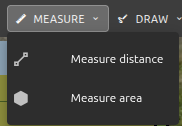
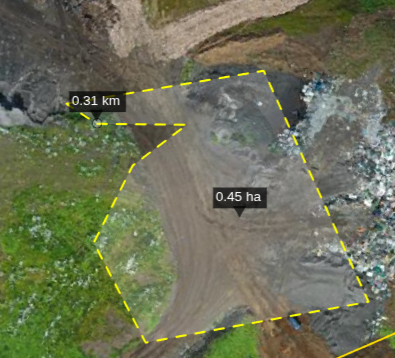
The Measure menu allows you to measure distances and areas directly on the map. The button turns orange when a measurement tool is active.
| Action | Description |
|---|---|
| Measure Distance | Click points on the map to measure a line distance (shown in m or km) |
| Measure Area | Click points on the map to draw a polygon and measure its area (shown in hectares) |
| Stop Measuring | Deactivate the active measurement tool (only appears when measuring) |
¶ How to measure
- Select Measure Distance or Measure Area from the menu.
- Click on the map to place points. The measurement updates in real time.
- Double-click to finish the measurement.
- The result label appears on the map near the measured geometry.
- To start a new measurement, simply begin clicking again — the previous measurement is cleared automatically.
- Select Stop Measuring to deactivate the tool.
¶ Draw
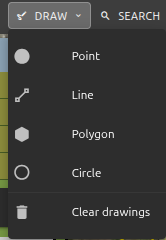
The Draw menu lets you sketch shapes on the map. The button turns orange when a drawing tool is active. Drawings are temporary and are not saved as assets.
| Action | Description |
|---|---|
| Draw Point | Place a single point on the map |
| Draw Line | Draw a line by clicking multiple points |
| Draw Polygon | Draw a closed polygon shape |
| Draw Circle | Click and drag to draw a circle |
| Stop Drawing | Deactivate the active drawing tool (only appears when drawing) |
| Clear Drawings | Remove all drawn shapes from the map |
¶ How to draw
- Select a shape type from the menu.
- Click on the map to place points (or click-and-drag for circles).
- Double-click to finish lines and polygons.
- You can draw multiple shapes — they accumulate on the map.
- Use Clear Drawings to remove all drawn shapes at once.
¶ Search
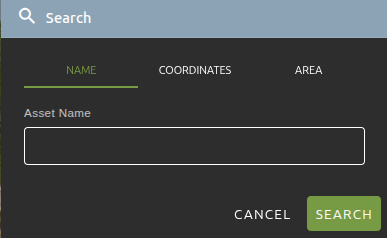
Click the Search button in the toolbar to open the search dialog. The dialog has three tabs: Name, Coordinates, and Area.
¶ Search by Name
Search for assets by their name.
- Type the asset name (or part of it) in the text field.
- Press Enter or click the Search button.
- The map zooms to the first matching asset and selects it.
¶ Search by Coordinates
Navigate to a specific location by entering coordinates.
- Select the coordinate system from the dropdown:
- EPSG:4326 (WGS84) — enter as
Lat, Lng(e.g.,59.33, 18.07) - Site CRS — enter as
X, Y(e.g.,692094.72, 6600434.39)
- EPSG:4326 (WGS84) — enter as
- Paste or type the coordinates into the text field.
- Adjust the Zoom slider to control how far the map zooms in (1–22).
- Press Enter or click Search.
- A red marker is placed at the target location.
Tip: You can copy coordinates from the map's right-click context menu and paste them directly into this field.
¶ Search by Area
Find all assets within a geographic area. There are two modes:
¶ Select Existing Area
Use an existing polygon feature on the map as the search boundary.
- Select the Area tab, then choose Select existing area.
- Optionally filter by layer using the Filter by layer dropdown.
- Click on a polygon feature on the map to select it as the search area.
- A green confirmation chip appears when a polygon is selected.
- Click Search to find all assets within that polygon.
¶ Draw Custom Area
Draw your own search boundary on the map.
- Select the Area tab, then choose Draw custom area.
- Choose a shape: Polygon or Circle.
- Click Start Drawing, then draw the shape on the map.
- Once the shape is completed, a green "Area drawn" chip appears.
- Click Search to find all assets within the drawn area.
¶ Area Search Results
After an area search, a results dialog appears showing all assets found within the selected area.
| Action | Icon | Description |
|---|---|---|
| Click item | — | Zoom to the asset and select it |
| Crosshairs | Crosshairs icon | Zoom to fit the asset in view |
| Open | External link icon | Open the asset detail page in a new tab |
- The results dialog is draggable — click and drag the title bar to reposition it.
- Click Clear to remove the search area and highlights from the map.
- Click Close to dismiss the results.
¶ Help
Click the ? icon on the right side of the toolbar to open the Map wiki page in a new browser tab.