The Import page loads readings from a gas analyser's file into your site.
The file must be a .csv file, up to 5 MB, saved with UTF-8 encoding. eLandfill reads the standard files of several gas analysers: BIOGAS5000, GA5000, and Optima7 (English or French files). If your analyser is not in the Device list, contact us and we will add it.
¶ Check your file first
The import is made for the raw files that come out of the analyser. If you opened the file in Excel or a similar program, it may have been reformatted. Check these points, preferably in a text editor such as Notepad:
- Do the point IDs match? The names or numbers of your sampling points must be the same as the measurement points on the site. Check them in Measure in the left-hand menu (see Measurements module). A row whose point is not on the site cannot be imported.
- Is the day or the month first in the dates? You tell the import which one it is under Date order. If the file mixes both, correct it in a text editor and save it with UTF-8 encoding.
- Are the column names unchanged? The import finds the values by the analyser's own column names. If they were renamed, change them back.
- Does the file have ANSWER columns? Some analysers store free answers in columns named ANSWER. Decide which parameter each one holds before you start.
¶ 1. The file
- Drop the file on the box, or click it to browse your computer.
- Under Device, choose the analyser that made the file. The device decides how the file is read.
- Under Date order, choose Day first or Month first. For example, 03/04 is 3 April with day first and 4 March with month first.
- If the file has ANSWER columns, open Answer columns and choose, for Answer 1, Answer 2 and Answer 3, the parameter each one holds. An answer left on Not imported is not imported.
- Click Read and check the file.
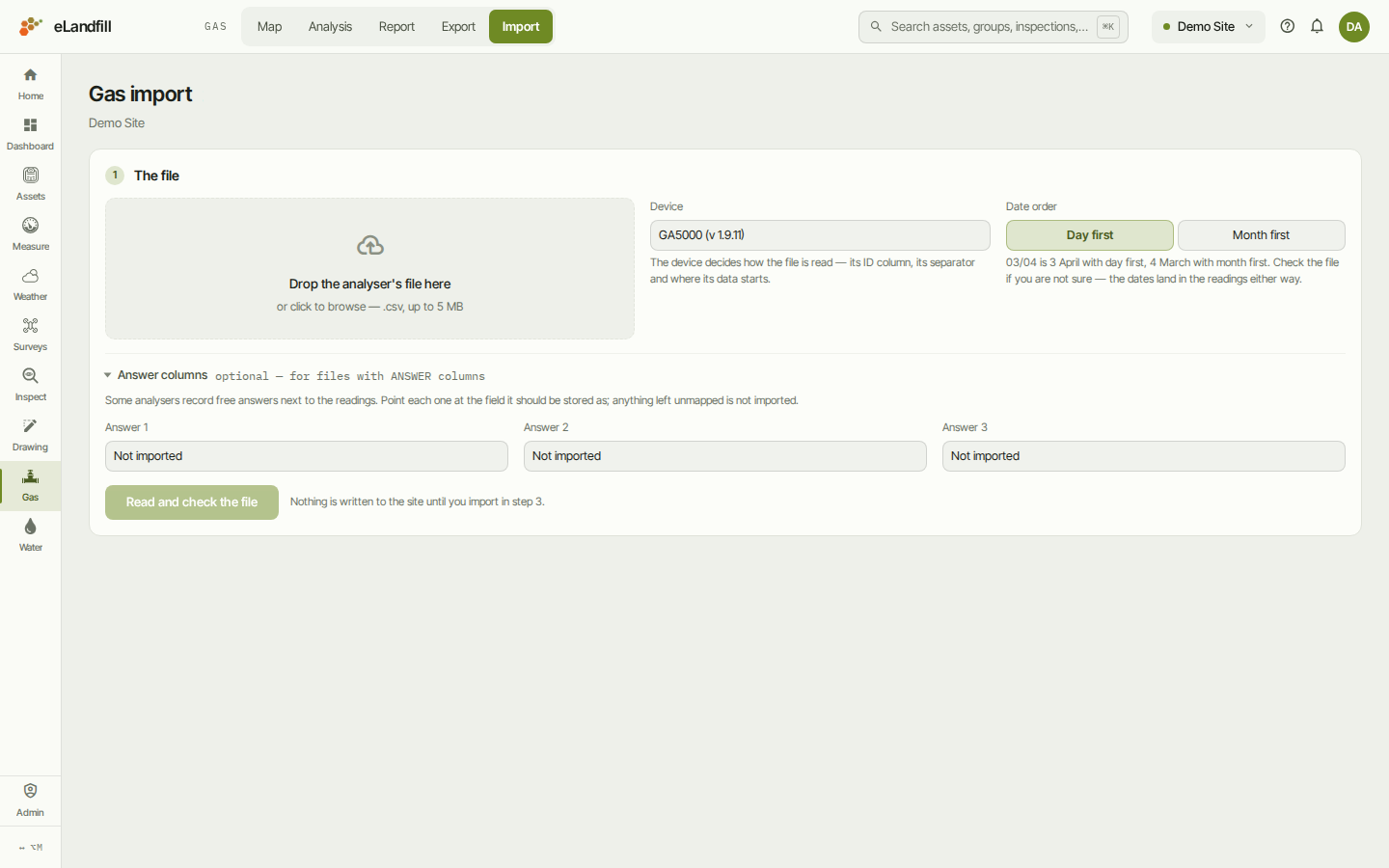
Nothing is written to the site until you import in step 3.
¶ 2. Rows
The page reads the file and checks every row. The tiles at the top count the rows:
- Rows in file: every row in the file.
- Ready: rows that can be imported as they are.
- With warnings: rows that will be imported, but have a value that looks unusual, or a column that will be dropped.
- Blocked: rows that cannot be imported. They are always skipped.
- Already recorded: rows whose point already has a reading at the same time.
Under the tiles:
- Point IDs not on this site lists the IDs in the file that match no measurement point on the site. Rename the point in Measure, or correct the ID in the analyser, then read the file again.
- Warnings lists each kind of warning and how many rows have it.
The table shows each row with its Status: ready, a number of warnings, point not on this site, or a number of errors. A row marked replaces already has a reading recorded. Use the chips All, Ready, Warnings, Blocked and Already recorded to filter the table.
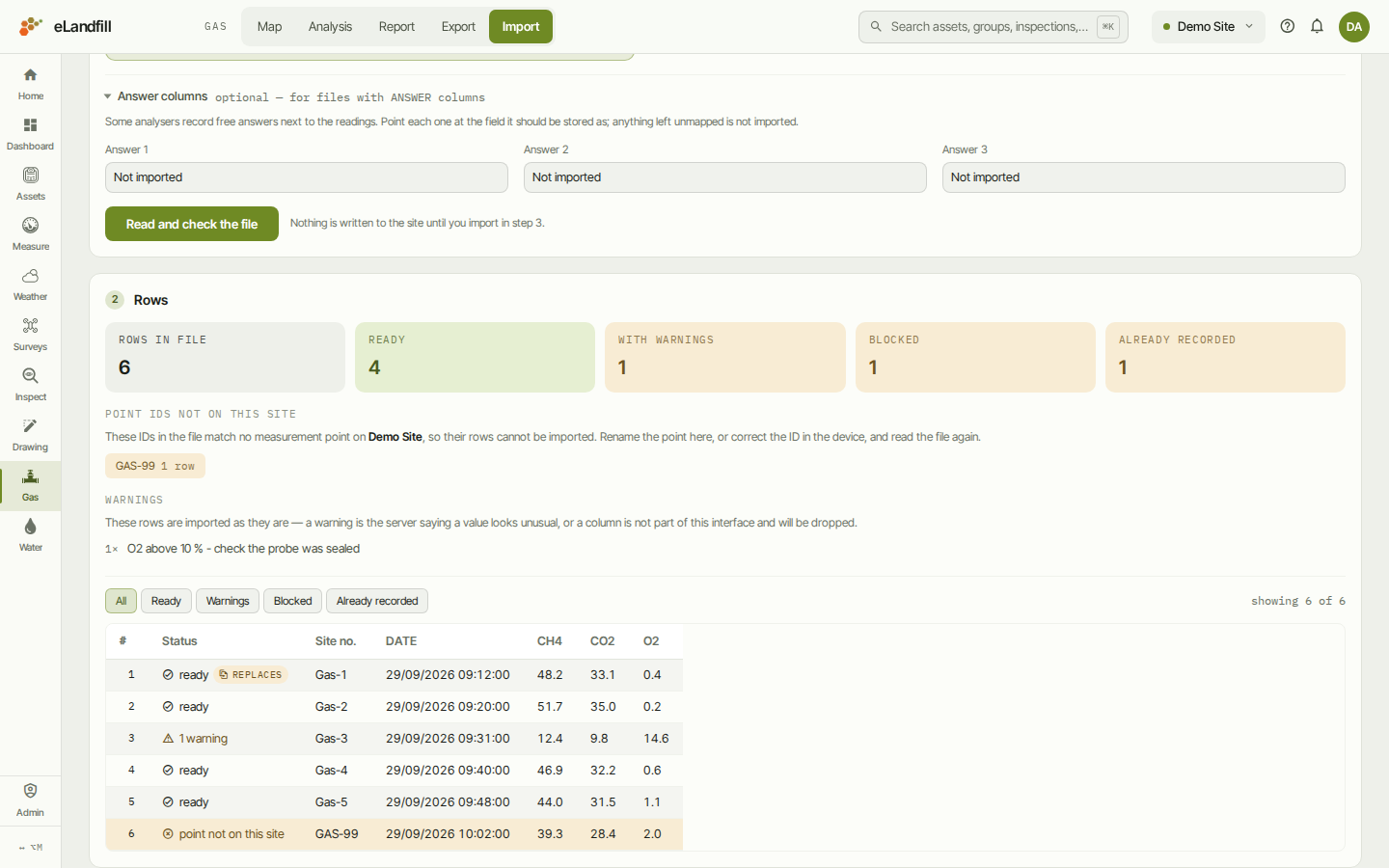
If the dates or values look wrong, check the Device and the Date order, then click Read and check the file again.
¶ 3. Import
This step says how many rows will be written to the site, and how many blocked rows will be skipped.
Overwrite readings already recorded:
- Ticked: a row whose point and time already have a reading replaces that reading. The page says how many readings will be replaced.
- Not ticked: those rows are left alone and the existing readings stay.
Click Import to write the rows. The button shows how many rows will be imported.

The whole file is written in one go. If something goes wrong, nothing is written and the page tells you why.
¶ After the import
The result shows how many readings were:
- Added: new readings.
- Replaced: readings that overwrote an existing one.
- Left alone: rows that were already recorded and not overwritten.
- Skipped: blocked rows.
- Errors: rows the database refused. They are listed under Rows the database refused.
If readings were replaced, Readings this import replaced lists each one with what changed. Click Download as CSV to keep a copy.
Click Open the gas map to see the new readings, or Import another file to start again.