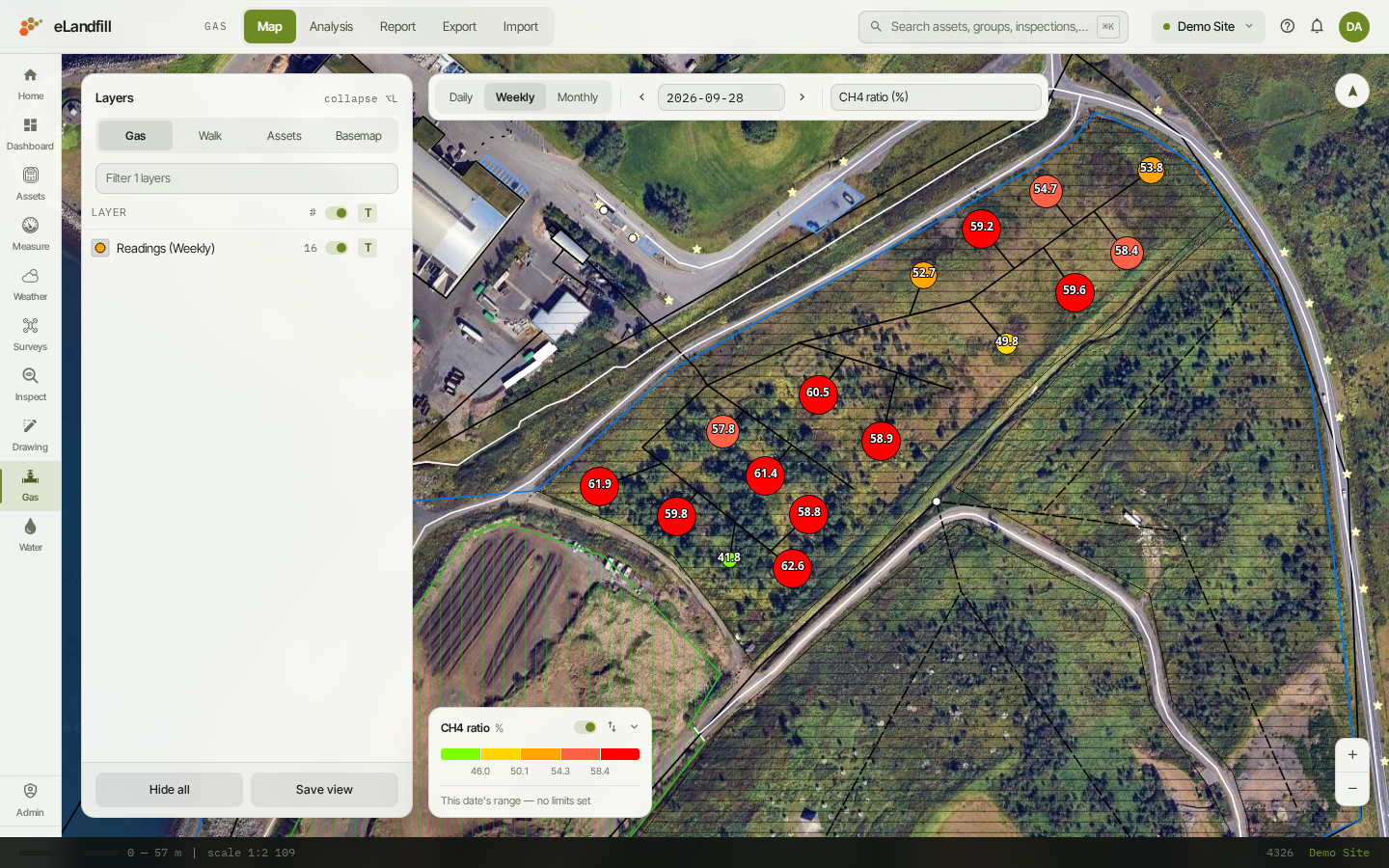
The gas map shows your site's gas readings on the map, coloured by value. It is the first page you see when you open Gas.
Each dot is a measurement point. The number on the dot is its reading for the parameter you chose.
¶ Choose what you see
Use the bar at the top of the map:
- Daily, Weekly or Monthly: how readings are grouped in time.
- The arrows and the date: step to the previous or next date that has readings, or pick a date from the list.
- The parameter list on the right: the value the dots show and are coloured by, for example CH4 ratio (%).
The map remembers your choices for each site.
¶ The legend
The legend at the bottom shows what each colour means.
- If your site has limits for the parameter, choose Site limits to colour by them, or This date to colour by the spread of values on the chosen date.
- Without limits, the colours always follow the date's own values. The legend says "no limits set".
- The switch turns colouring on or off. With colouring off, every dot is white, which makes it easier to see where the points are.
- The arrows button flips the colour ramp, for example for a parameter where a high value is the good end. It lasts until you leave the page.
- The small arrow at the right lists every colour band with its range of values.
¶ The Layers panel
The Layers panel on the left has four tabs:
- Gas: the gas readings layer, with the number of points that have a reading.
- Walk: the walking survey layers. See Walking surveys below.
- Assets: the site's asset layers, such as wells and pipes.
- Basemap: the background map.
Each row has a switch to show or hide the layer. The T switch shows or hides its labels.
At the bottom, Hide all hides every layer. Save view keeps the current map position and zoom, so the map opens there next time.
¶ Look at one reading
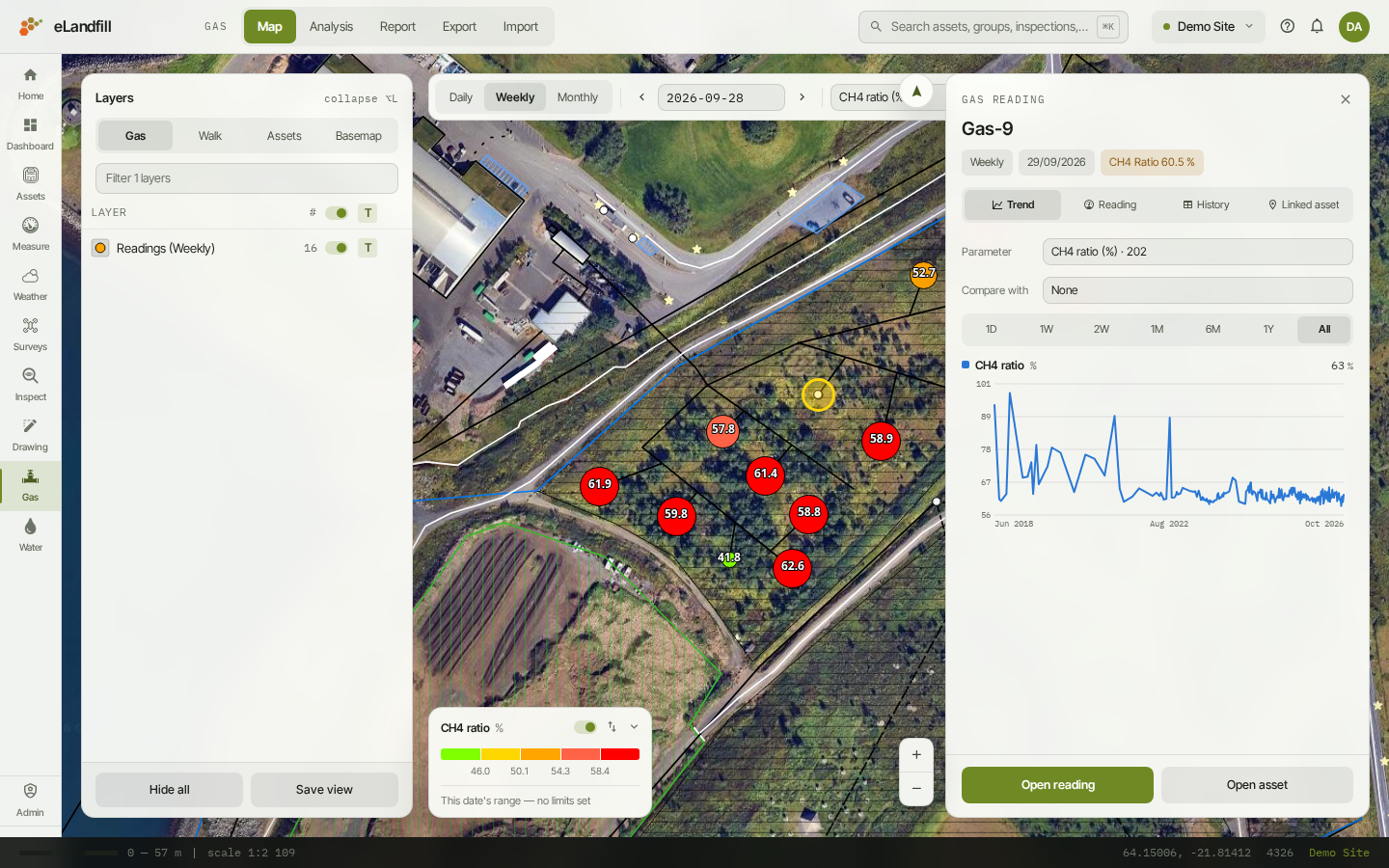
Click a dot to open the Gas reading panel on the right. It shows the point's name, the period, the date and the value you clicked.
The panel opens on the Trend tab: a chart of every reading at this point.
- Parameter: the value to plot.
- Compare with: add a second value.
- 1D to All: how far back the chart goes.
- With a second value, choose Overlay for one chart or Stacked for two charts on the same time line.
The other tabs:
- Reading: every value of this reading. The value the map is coloured by is listed first.
- History: all readings at this point, newest first.
- Linked asset: the asset the point belongs to, with its details and a count of its gas readings.
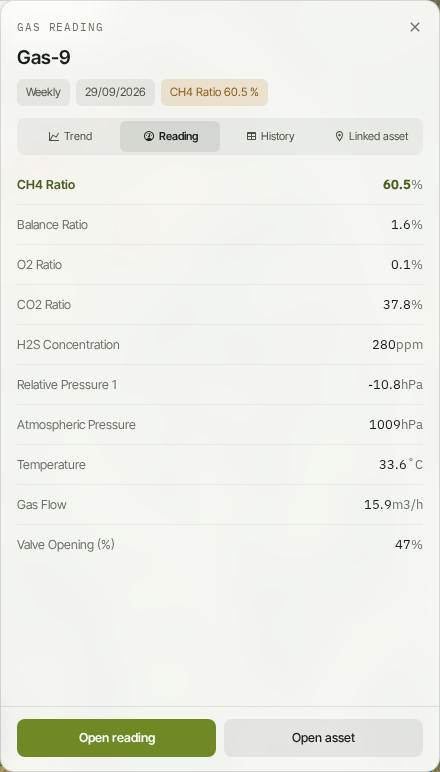
At the bottom of the panel:
- Open reading opens a full-page view of the point's readings in a new browser tab.
- Open asset opens the asset's page in a new browser tab.
¶ Walking surveys
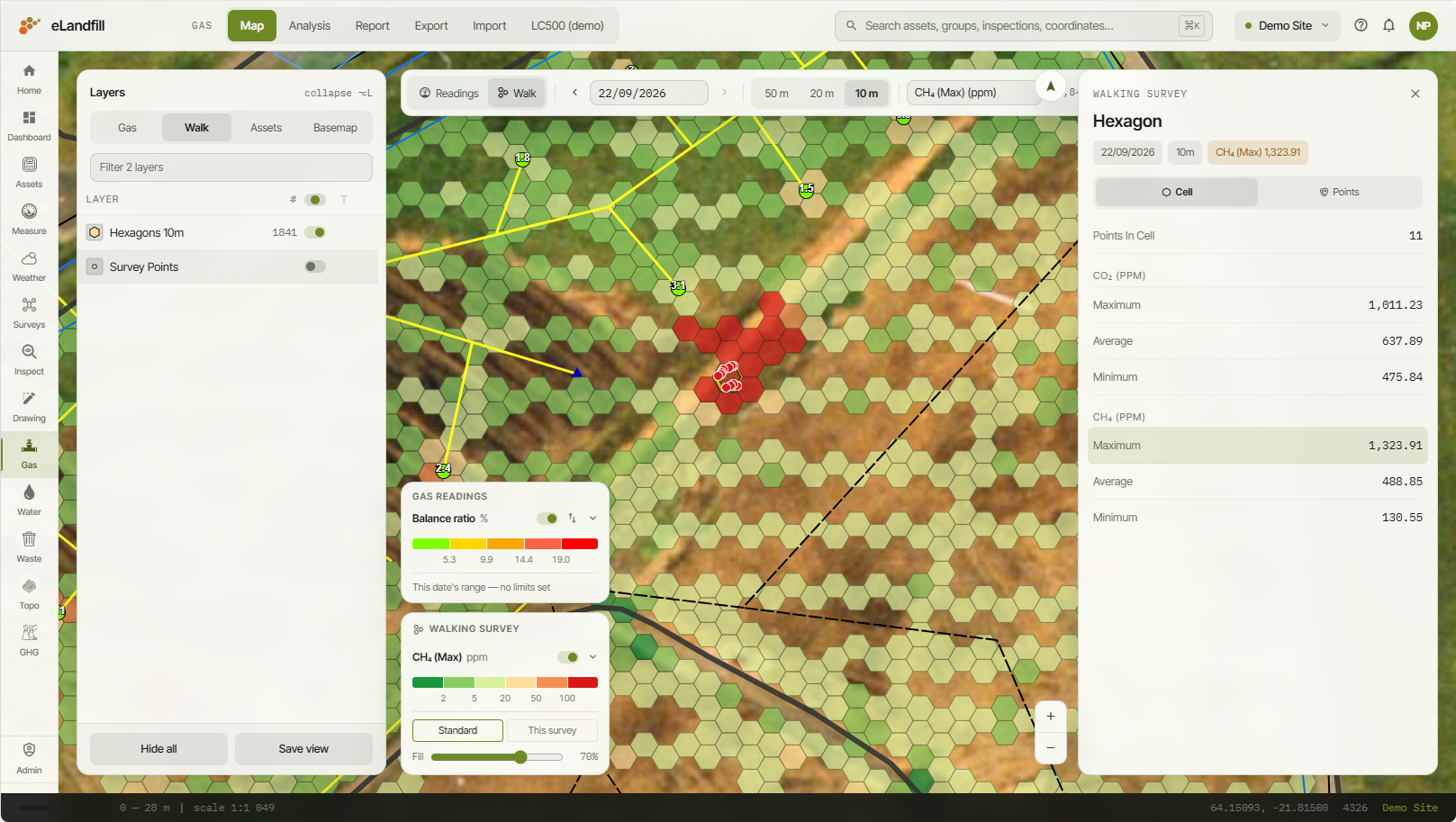
A walking survey is a gas walk across the site with a portable detector. The map groups its many points into hexagon cells and colours each cell by its value.
¶ Import a walking survey
Walking surveys are imported in the Surveys module, not in Gas. The file is a .csv file with the coordinates of each point and the gas concentrations measured there. See Survey module.
¶ Show it on the map
To show a walking survey, open the Walk tab in the Layers panel. You can also click Gas map next to a walking survey in Surveys: the map opens on that survey.
The left end of the bar has two buttons. One shows the controls for the readings taken at the site's wells. The other shows the controls for the walking survey.
With the walking survey controls:
- The arrows and the date: step to the previous or next survey.
- 50 m, 20 m or 10 m: the size of the hexagons. Choose it according to the walking paths used during the survey: with paths far apart, larger hexagons give an even cover of the site; with close paths, 10 m hexagons show more detail.
- The value list: CO₂ or CH₄, in ppm. For each gas, choose whether each hexagon shows the maximum, the average or the minimum of the points measured in it.
- The number of cells is shown on the right.
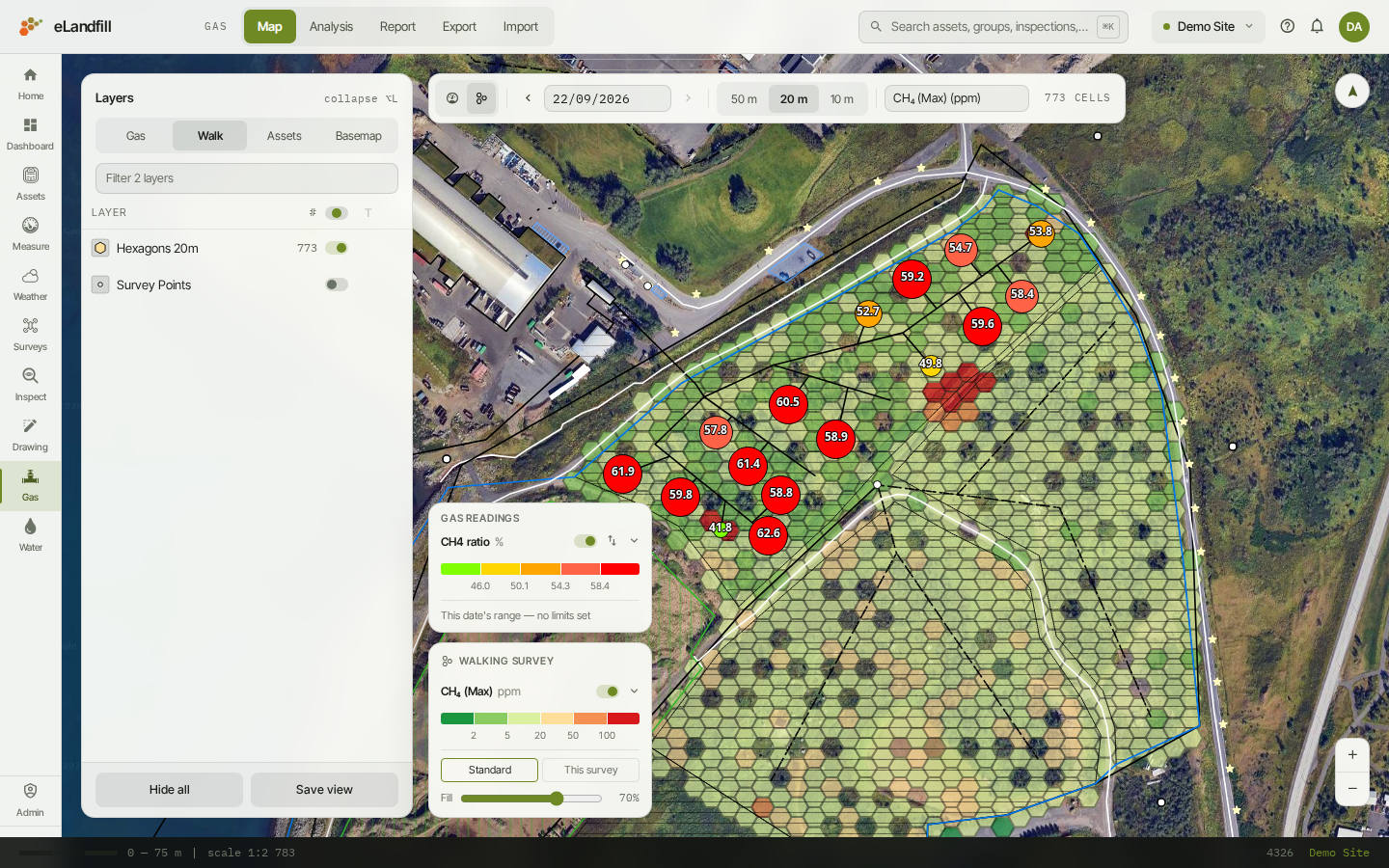
The Walking survey legend sits under the gas readings legend:
- Standard uses fixed ppm bands. The same colour means the same value on every survey.
- This survey spreads the colours over this survey's own values.
- Fill sets how see-through the cells are.
In the Walk tab, Survey Points shows the survey's single points instead of, or as well as, the cells.
¶ Look at one hexagon
Click a hexagon: the points measured in it are displayed on the map, and the Hexagon panel opens on the right.
- Cell: the number of points in the hexagon, and the maximum, average and minimum of each gas.
- Points: the points measured in the hexagon, newest first.
¶ With assets and gas readings
The walking survey can be shown at the same time as the site's assets and the manual gas readings taken at the wells. Switch each one on in its own tab of the Layers panel (Gas, Walk, Assets). This lets you see, for example, whether a hot spot is near a well, a pipe or a drain.
The map remembers your walking survey settings for each site.